Configure pricing rules
This tutorial walks through how pricing is shaped in Revenue Cloud: list prices on the catalog, customer- and segment-specific overrides, and an approval step so changes are reviewed before customers see them. It's a conceptual walkthrough of the model and where each piece is configured — not a code reference. You'll do most of the work in Cockpit, on top of the platform's core Pricing app.
This is for developers and operators setting up B2B pricing for a tenant. You need a tenant with the Pricing and Customers core apps installed (most tenants start with them) and, for segment pricing, the Markets app. Read the Market Concept first — markets are how per-segment pricing resolves.
1. Set list prices on the catalog
Every product carries a list price — the default a buyer sees with no contract applied. If you imported your catalog (see Import a BMECAT catalog), those prices are already on your products. List price is the floor the rest of the rules build on: customer and market pricing are expressed as overrides relative to it.
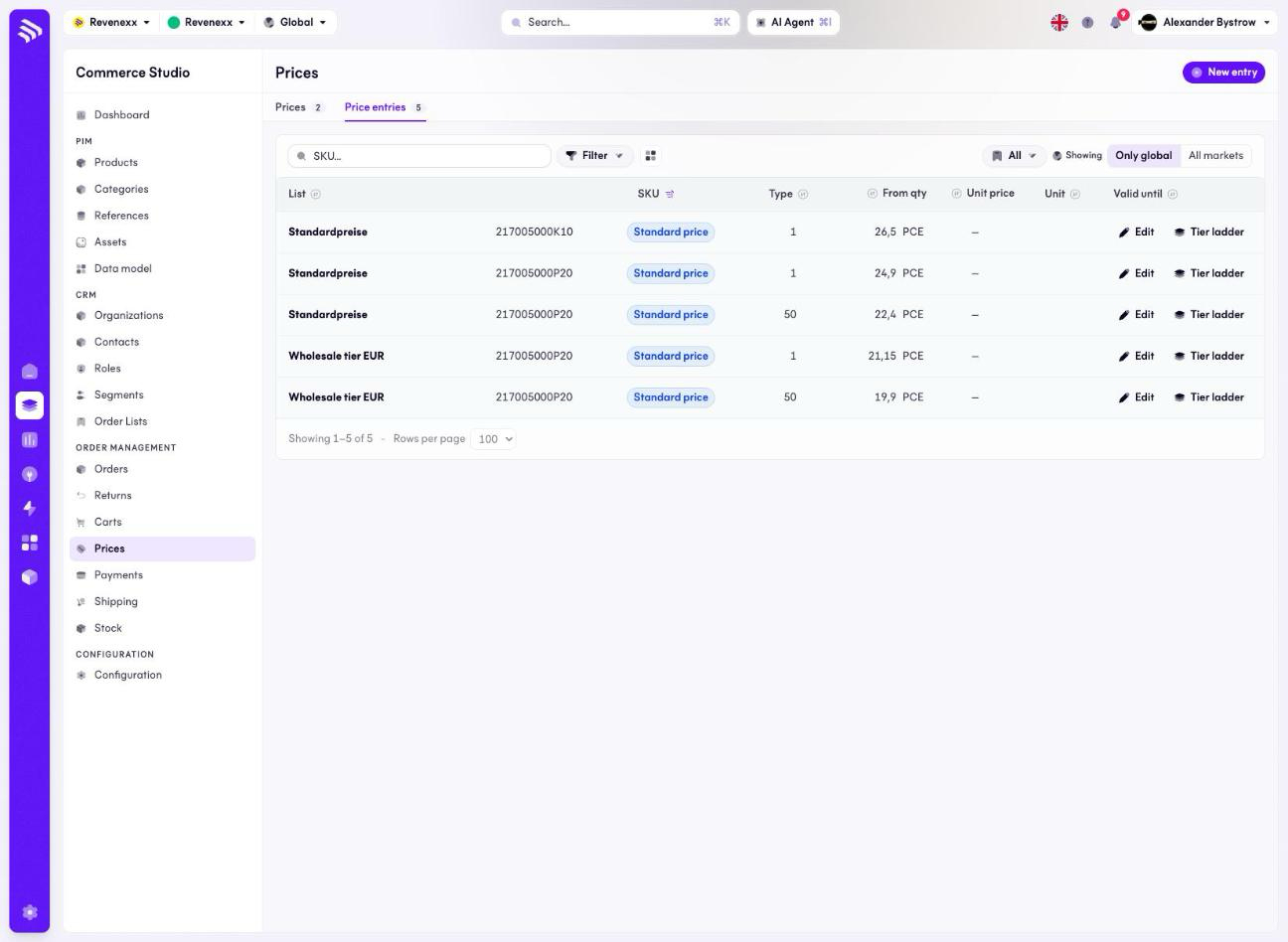
List prices live on a price list, not on the product record. Every tenant starts with a default list — each entry ties a SKU to a unit price, and a second entry for the same SKU at a higher from quantity forms a quantity ladder.
2. Add customer-specific pricing
B2B buyers rarely pay list. A distributor gives Customer A net-30 contract pricing and Customer B a volume discount. In Revenue Cloud you model this by attaching pricing to a customer or a customer group rather than editing the product:
- Per customer — a negotiated contract price for specific SKUs, tied to one account in the Customers app.
- Per customer group — a tier (e.g. "Wholesale", "Key accounts") that many customers share, so you maintain one rule instead of hundreds.
The Pricing app resolves the most specific match at request time: a customer's own contract price wins over their group's tier, which wins over the list price. A storefront or order call that carries the buyer's identity gets the right price automatically — you don't compute it in the storefront.
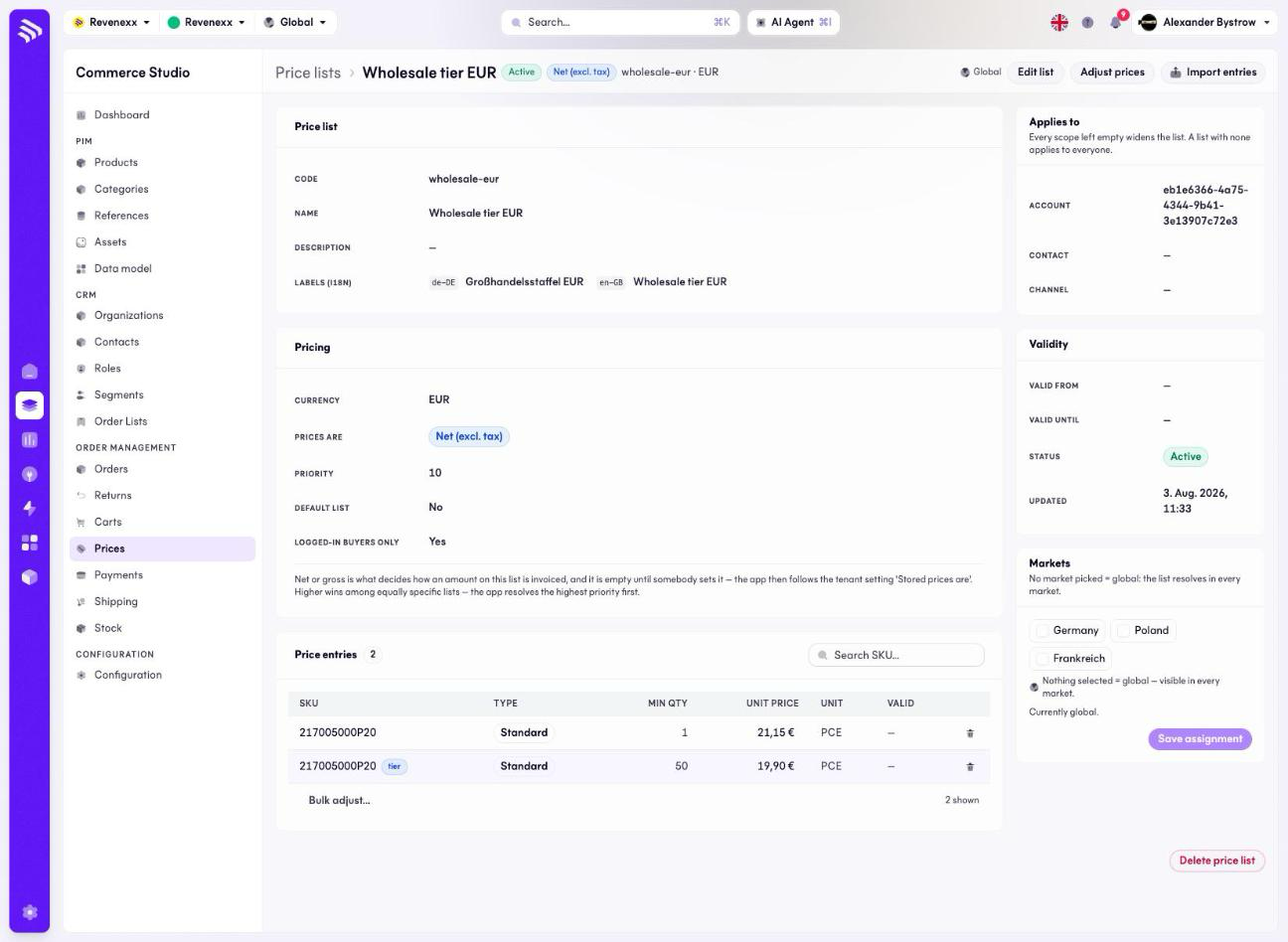
In Cockpit this is a second price list whose Applies to scope names an account (or a contact, or a channel). Leave a scope empty and it widens the list; a list with none applies to everyone. Priority breaks ties between equally specific lists, and logged-in buyers only keeps a contract tier out of anonymous price calls.
3. Override per market
If you sell across regions or run separate B2B and B2C storefronts, layer in Markets. A market is a segment inside the tenant — a country, currency, brand, or channel — and pricing is one of the things it can override. The resolution order extends naturally:
1) Customer / customer-group price (most specific)
2) Market override (currency, regional list, channel rule)
3) Tenant list price (the default)
This is the same fallback model markets use for any setting: the market-specific value wins, and anything unset falls back to the tenant default. One catalog, one set of customers, prices that differ correctly by segment.
4. Add an approval step for changes
Price changes have revenue impact, so you usually want a human to review them before they reach customers — especially bulk updates from a supplier feed or an automated adjustment. There are two complementary ways to gate this, depending on where the change originates:
- Operator-driven changes — when a price update arrives from an integration (a supplier catalog, an ERP sync), route it through an Integration Studio workflow with a manual trigger or an approval branch. The workflow stages the proposed prices and waits for someone to press Approve before it writes them to the catalog — human-in-the-loop, with the diff in front of the reviewer.
- Machine-driven changes — an adjustment computed by your own service or a scheduled job is the same case: have it write proposals rather than prices, and let a workflow gate the write. (AI Studio is intended to propose adjustments like these, but it is a preview with no public API today — don't design around it yet.)
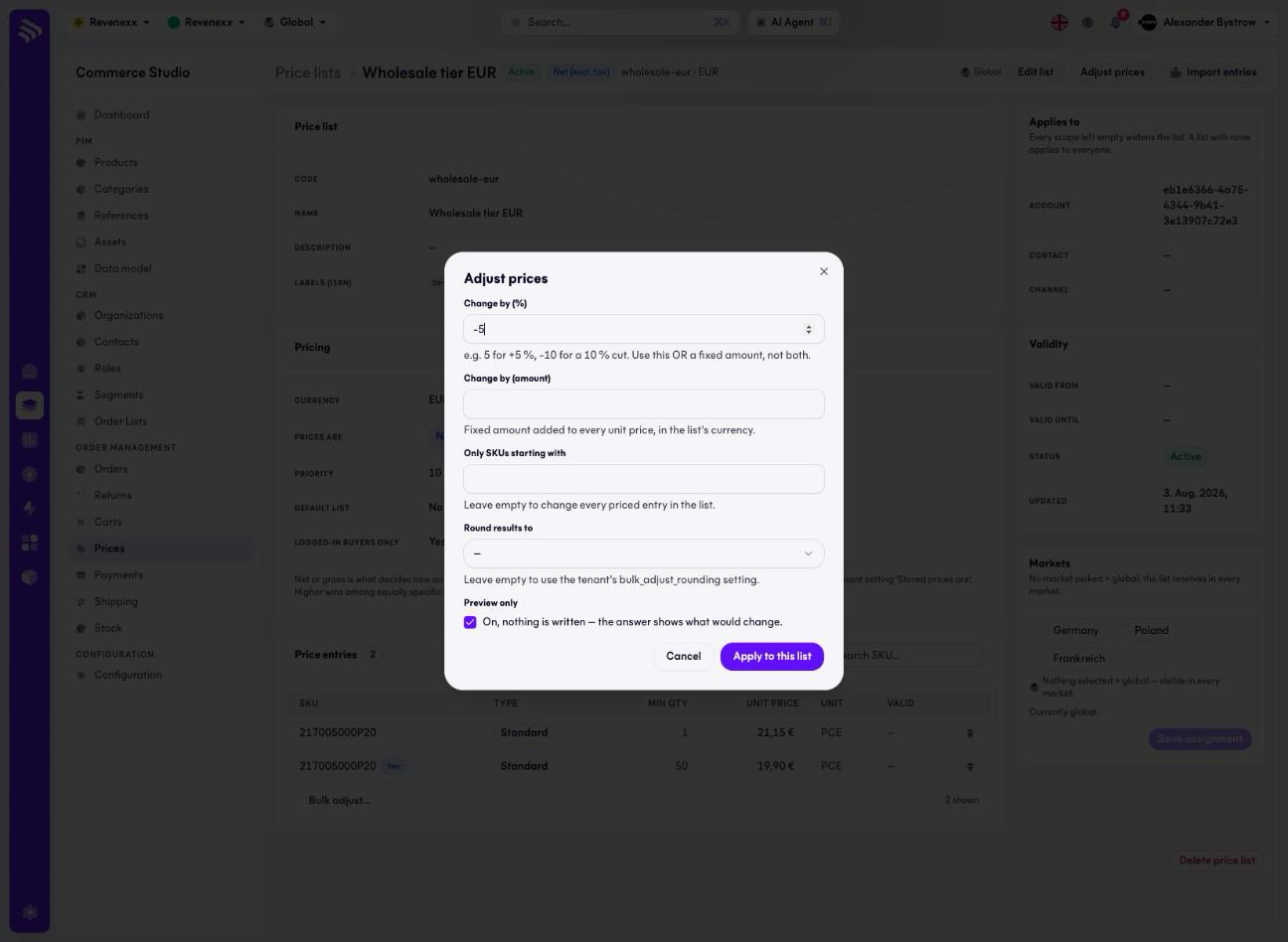
Cockpit itself has no approval inbox — the gate is the workflow. What Cockpit gives you is a dry run: a bulk adjustment with Preview only enabled reports what would change without writing anything, so a reviewer can see the effect of a proposed change before it's applied.
A practical pattern: let routine, in-corridor changes apply automatically, and require approval for anything that crosses a threshold (a discount deeper than X%, or a change to a key account). That keeps the day-to-day fast while protecting the prices that matter.
5. Verify the price a buyer sees
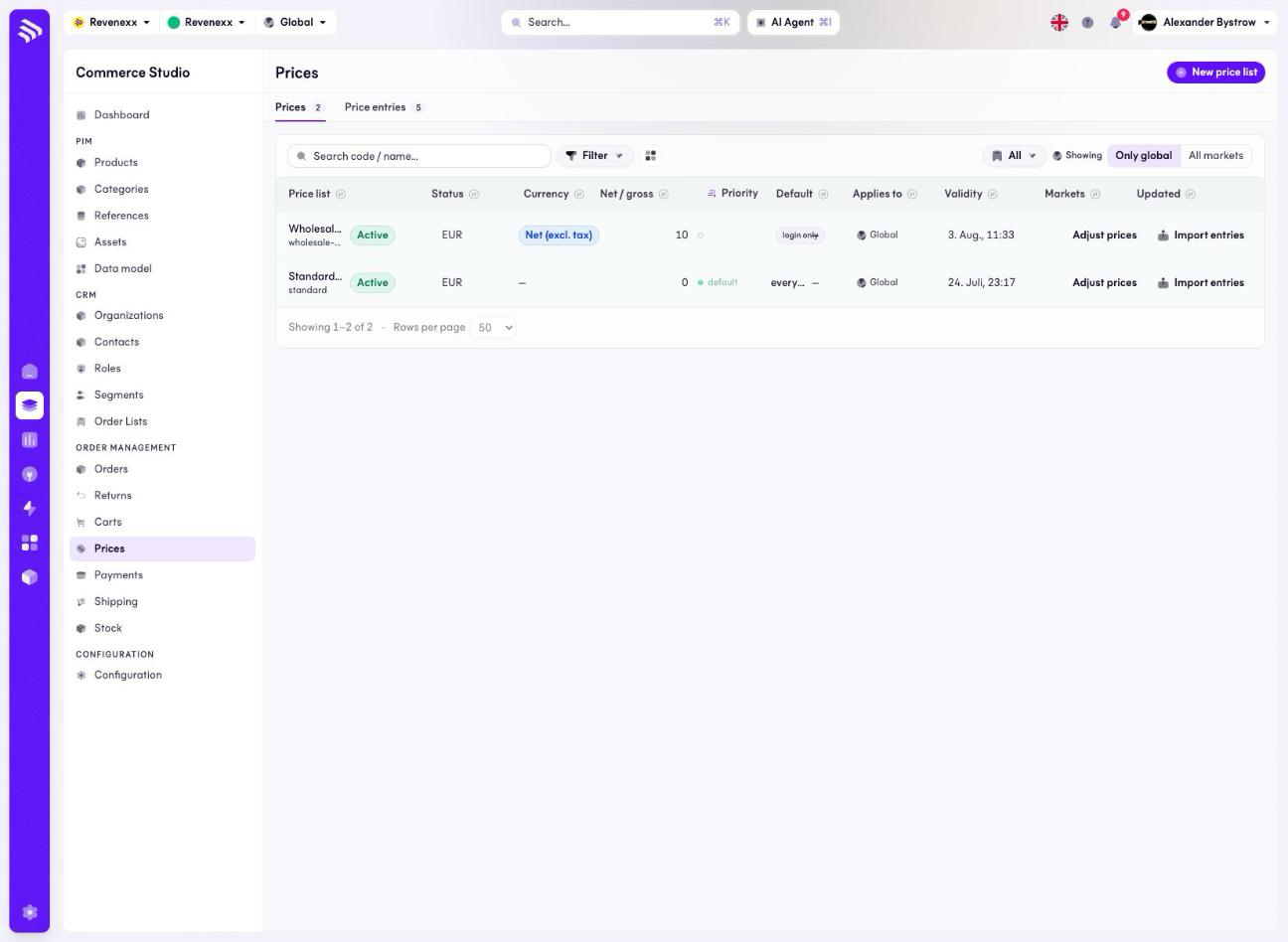
Confirm the rules resolve correctly by checking the price as a specific customer in a specific market — the same resolution the storefront and order flow use. Start by reading the price list index: it shows every list's scope, priority, currency, tax basis, markets and which one is the tenant default, which is the whole input to the resolution. Then place a test order as that customer and confirm the line price matches the contract you configured.
Troubleshooting
- A customer still sees list price. The request didn't carry the buyer's identity, so the Pricing app had nothing more specific to resolve against. Make sure the storefront or API call is authenticated as the customer.
- The wrong currency shows up. The buyer's market isn't set, or its currency override is missing. Check the market resolves for that customer and that it carries a currency override.
- An approved change isn't live. The approval step completed but the write didn't run, or it wrote to the wrong scope (tenant vs market). Re-check the workflow's final write step and the market it targets.
- Group and contract prices conflict. Both matched and the more specific one won — that's by design. If a contract price is wrong, fix it on the customer; the group tier is the fallback, not an override.
Where to go next
- Market Concept — how per-segment resolution works in depth.
- Apps — the core Pricing and Customers apps and their capabilities.
- Integration Studio — building the approval workflow that gates changes.
- AI Studio — status of the platform's AI, and why you can't build on it yet.