Import a BMECAT product catalog
Your supplier drops a BMECAT catalog on your SFTP inbox, and the products are in your tenant by the next run. Integration Studio ships an official template for exactly this, so you install it rather than build it: set a handful of variables, point it at two credentials, and activate the schedule.
This is for developers and integrators connecting a PIM, ERP, or supplier feed to Revenue Cloud. You need a tenant with Integration Studio, a Revenexx API credential carrying the io scope, an SFTP credential, and a BMECAT file the supplier can drop in the inbox folder. Everything happens on the Workflow Builder canvas, so there's no local setup.
T_NEW_CATALOG, T_UPDATE_PRODUCTS and T_UPDATE_PRICES.1. Install the template
In Cockpit, open Integration Studio → Templates and pick BMECat catalogue import from SFTP (publisher revenexx, marked Official, seven steps). Press Use template. That creates a paused copy in your workflows — nothing runs until you activate it, so you can read and adjust the whole flow first.
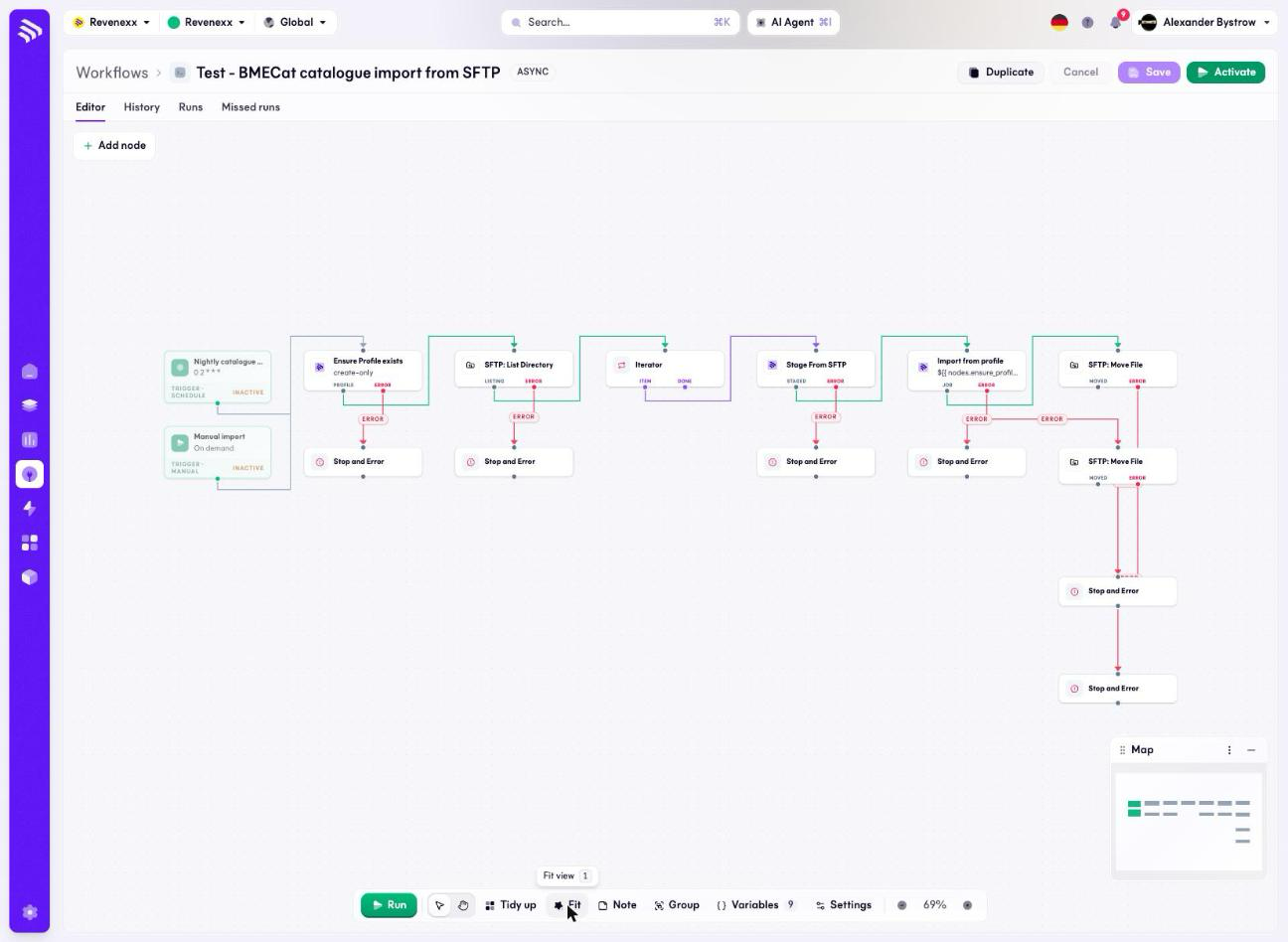
Two triggers feed the same chain: a nightly pickup on 0 2 * * * and a manual trigger for running it yourself. The chain then does, per file:
Ensure Profile exists   creates the import profile if missing, emits its id
SFTP: List Directory    lists the inbox, optionally filtered by a glob
Iterator                runs the rest once per file found
Stage From SFTP         streams the file into Import & Export, emits an object key
Import from profile     runs the profile against the staged file
SFTP: Move File         moves the file to the archive folder, or to failed
Every step carries an error branch that stops the run, and a failed import moves its file to the failed folder instead of vanishing. Nothing disappears silently.
2. Set the variables
The template exposes its configuration as workflow variables, set once after install and used across the nodes. Open Variables on the canvas toolbar.
| Variable | What it controls | Default |
|---|---|---|
inboxPath | SFTP folder the supplier drops feeds into | /inbox/catalogs |
archivePath | Where processed feeds are moved | /archive/catalogs |
failedPath | Where feeds with a failed import are moved | /failed/catalogs |
pidColumn | Product column carrying SUPPLIER_PID, used as the upsert key | sku |
productEntity | Entity the BMECAT products are written to | products |
app | App segment of the product table | products |
vendor | Vendor segment of the product table | revenexx |
language | Preferred ISO language of catalog texts | deu |
locale | PIM locale key for translatable text | de |
pidColumn is the one to get right first: it decides which of your product columns the supplier's SUPPLIER_PID is matched against, and therefore whether a second run updates products or creates duplicates.
3. Connect the credentials
The workflow needs two credentials, both managed under Integration Studio → Credentials:
- A Revenexx API credential with the
ioscope, used by the three Import & Export steps. - An SFTP credential for the server the supplier delivers to.
The template page reports readiness for both before you install, so you can see what's missing without opening the workflow.
4. Run it once by hand
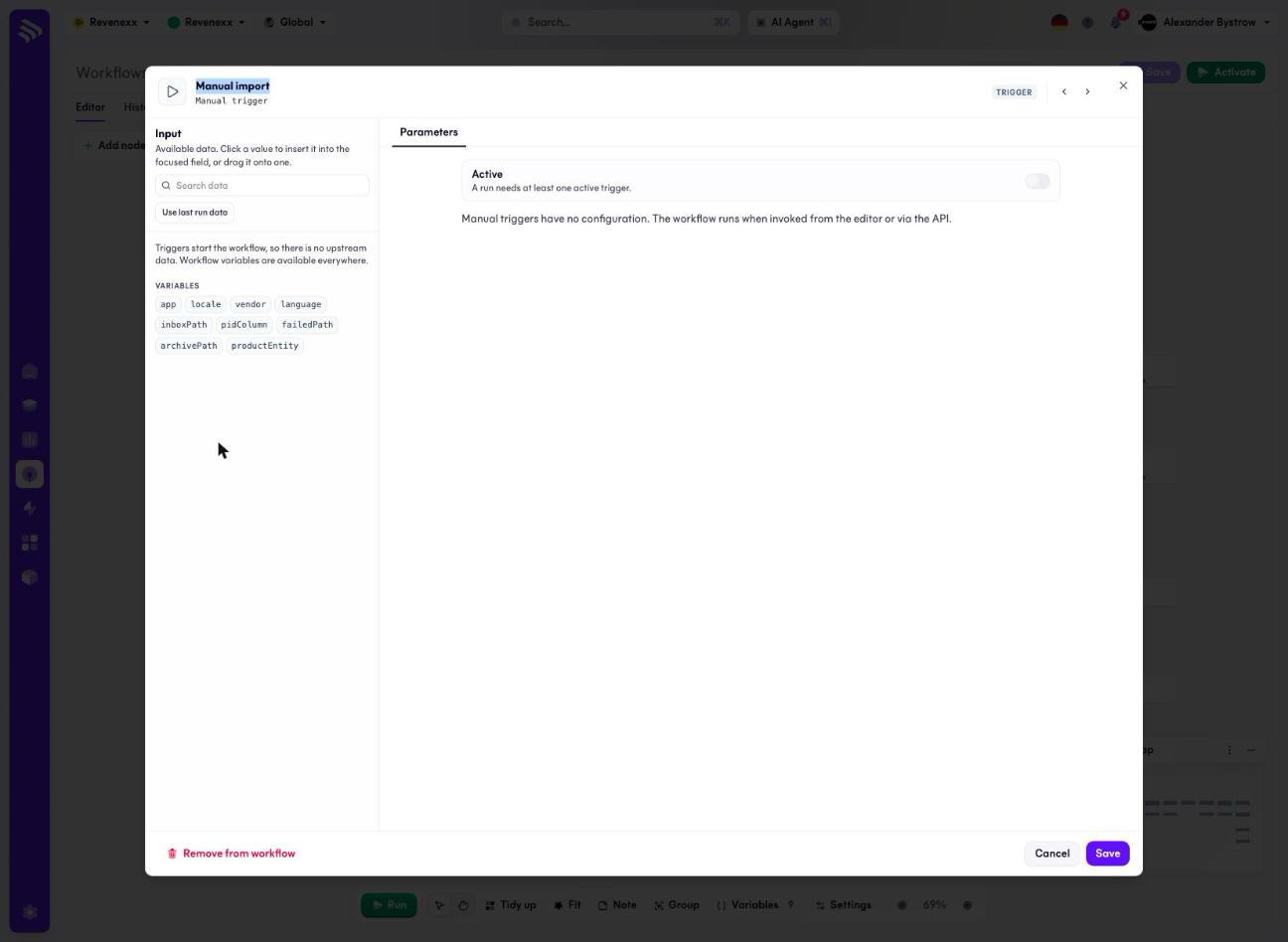
Drop a BMECAT file in the inbox folder and run the workflow from the editor. The manual trigger takes no configuration — there are no parameters to fill in, and you start it with the Run button or an API call.
Watch the run on the canvas. Open Stage From SFTP to confirm it emitted an object key, then Import from profile to see the import job and its result. When the run finishes cleanly, the file is in the archive folder.
Confirm the products landed by listing them over the API gateway:
curl -s https://api.revenexx.com/v1/products \
  -H "X-Revenexx-Api-Key: $REVENEXX_API_KEY" \
  -H "X-Revenexx-Tenant: $REVENEXX_TENANT"
5. Widen the profile beyond products
The profile the template provisions maps products only, upserting on pidColumn. That's the deliberate starting point, not the finished mapping. After the first run, open the profile under Integration Studio → Import & Export and add the feature, price, image and category entities of your app schema.
The import is column-tolerant: it writes only the entities you name and ignores the rest of the feed, so you can widen the mapping one entity at a time and re-run against the same file.
Images are the exception to "add an entity and you're done". Image blocks arrive as metadata rows carrying a URL, a mime type, and a purpose. To hold the binaries in your own storage, persist them with an Upload Asset node in a follow-up flow.
6. Activate the nightly schedule
When a manual run does what you want, activate the workflow. The schedule trigger picks the inbox up at 0 2 * * * in Europe/Berlin; edit the cron on the trigger if your supplier delivers on a different clock.
0 2 * * * Europe/Berlin
The largest feed tested against this template is 469 MB, and the import step ships with a two-hour node timeout for gigabyte catalogs, so a full supplier catalog is a normal case rather than something to work around.
Troubleshooting
- The run finds no files.
inboxPathdoesn't match where the supplier actually writes, or the glob on SFTP: List Directory excludes the file. Open the node's output and check the listing before blaming the credential. - The file moved to the failed folder. The import ran and rejected the feed. Open Import from profile in the run and read the job result — a failed import is reported there, not on the SFTP steps.
- Products import, prices and images don't. Expected until you widen the profile. The provisioned mapping covers products only; add the price and image entities in step 5.
- A second run creates duplicate products.
pidColumnisn't pointing at the column that holdsSUPPLIER_PID, so every article looks new. Fix the variable rather than the feed. - Texts land in the wrong language.
languageselects which BMECAT language block is read,localedecides which PIM locale it's written to. They're set separately, and mismatching them is the usual cause.
Where to go next
- Workflow Builder — execution modes, retries, and inspecting runs.
- Node Types — the node catalog, including what's still on the roadmap.
- Expression Syntax — referencing step outputs, variables, and secrets.
- Configure pricing rules — what to do with the prices once the catalog is in.