Deployments
Each site can have many deployments, which can be thought of as versions of the web application. Sites can be created and deployed using different methods to meet your unique development habits.
Deployment status
Throughout the life cycle of a deployment, it can have any of the following status:
| Status | Description |
|---|---|
active | The deployment is built and currently activated and ready to be accessed. A site can have one active deployment and the deployment must be active before being executed. |
ready | A deployment is built, but is not activated. Any ready deployment can be activated to replace the current active deployment. A ready deployment can also be previewed by authorized members of your revenexx organization before activation. |
building | A deployment is being built. Check the deployment logs for more info. |
processing | The creation of a storefront deployment has begun and has not finished. |
waiting | The deployment is queued but has not been picked up for processing. |
failed | A deployment was not successful. Check the deployment logs for more info for debugging. |
Deployment logs
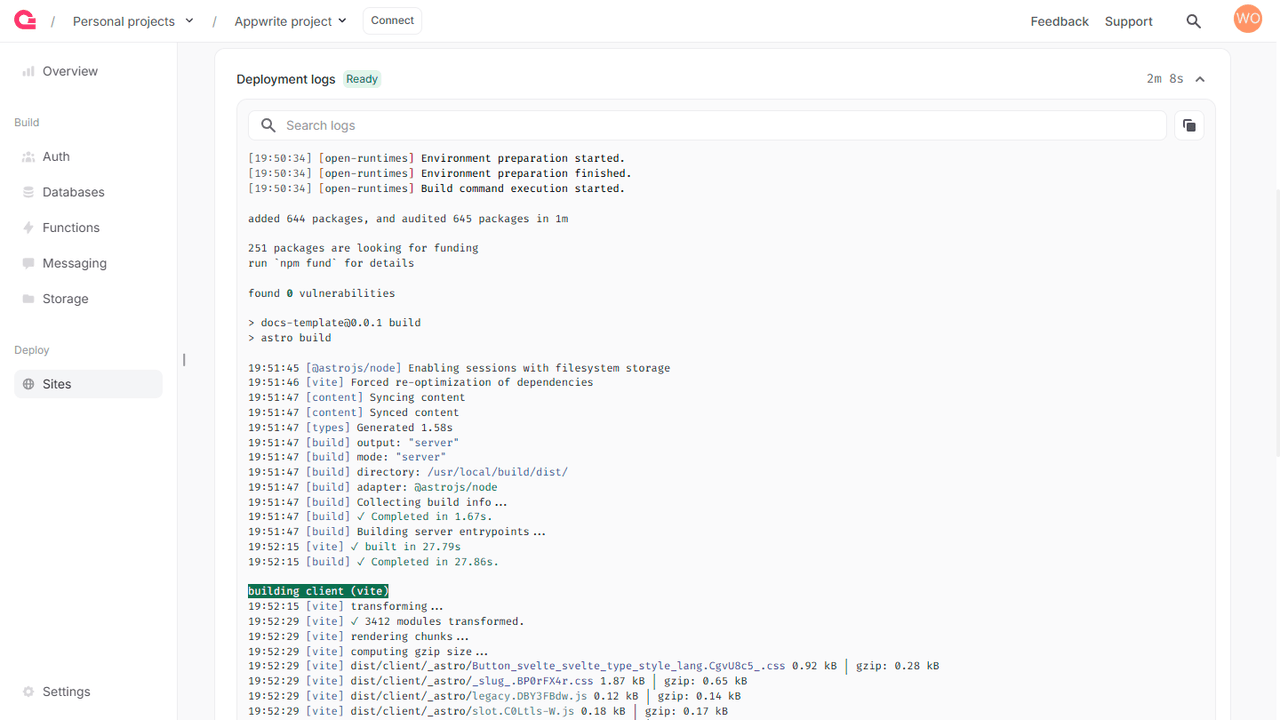
When you build a deployment, the logs generated will be saved for debugging purposes. You can find these build logs by navigating to the Deployments tab of your storefront, clicking the three-dots menu beside a deployment, and clicking Logs.
Create deployment
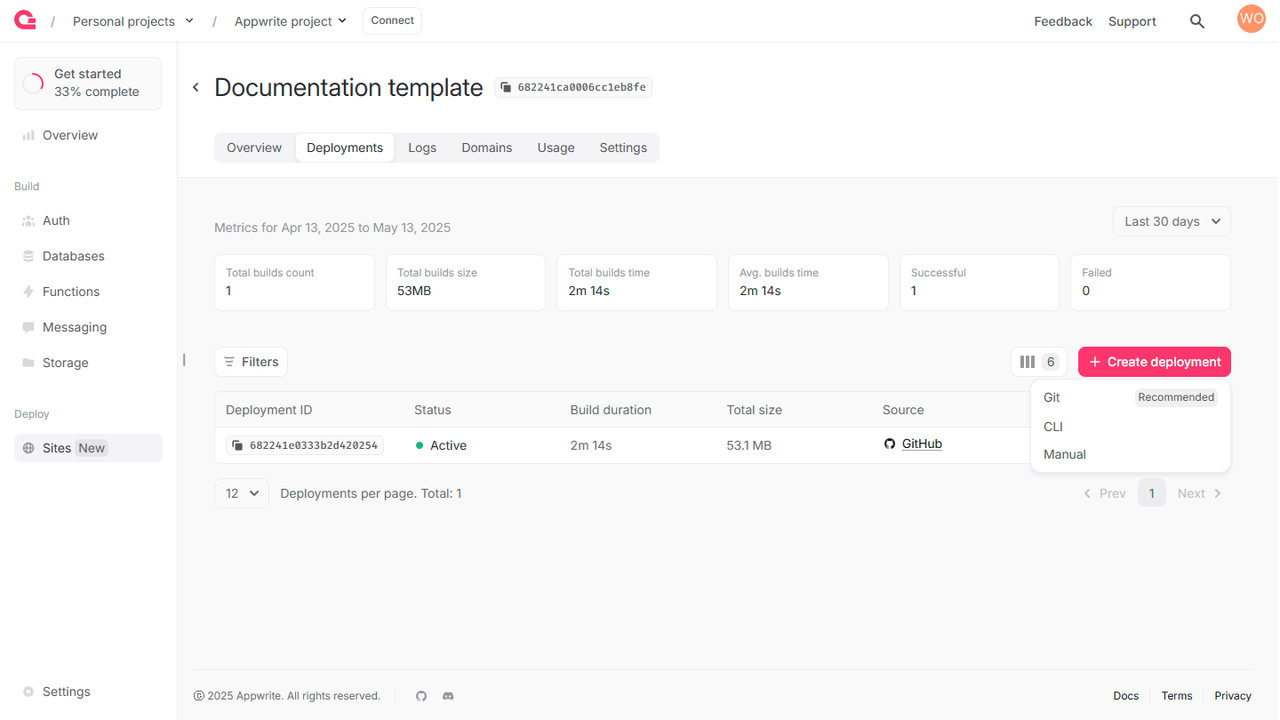
To manually trigger a deployment of your app from the revenexx Console, you can head to the Deployments tab of your storefront, click on the Create deployment button, and select one of the following:
- Git: Lets you select a branch on your connected Git repo and whether you would like to activate the build post-deployment
- CLI: Lets you run a CLI command in your storefront's directory
- Manual: Lets you upload a .tar.gz file containing your storefront's build output
Cancel deployment
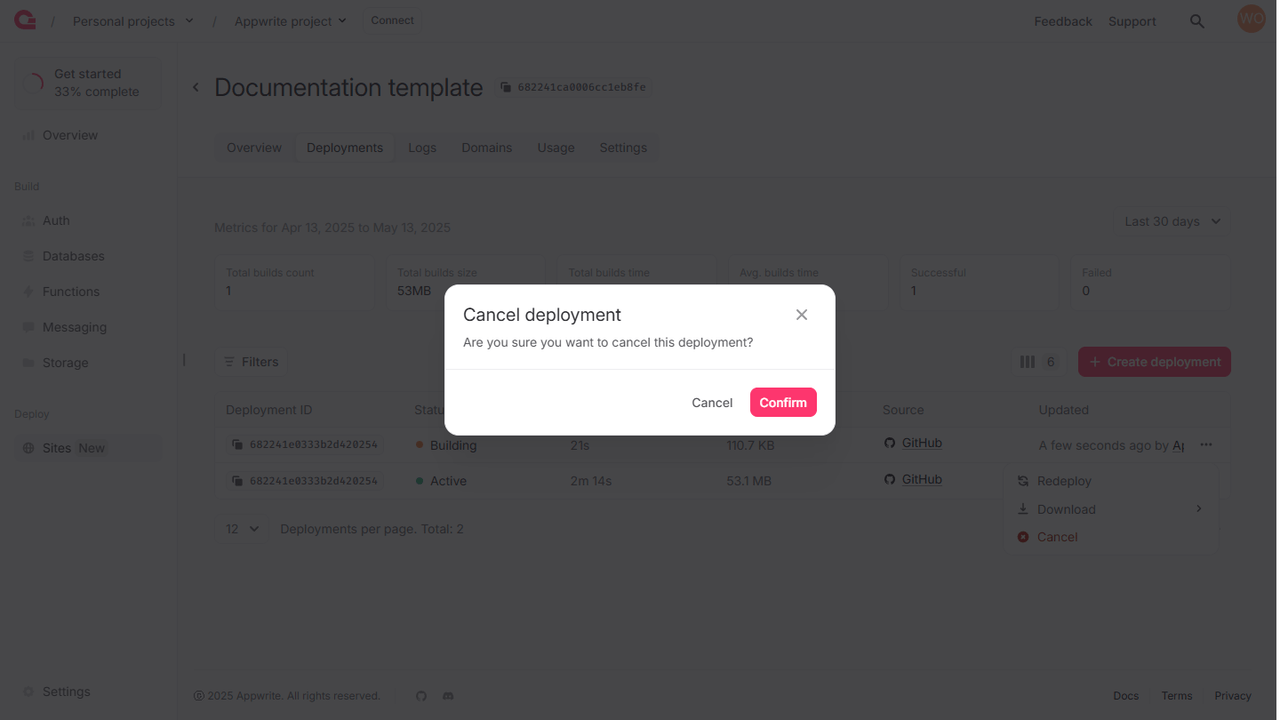
If a storefront is being deployed and you wish to stop this deployment, you can head to the Deployments tab of your storefront, click on the three-dots menu, and click on the Cancel button.
Update deployment
Some site settings require redeploying your storefront to be reflected in your active deployment. When you update a storefront by changing its Git repository, Build settings, and Environment variables, you must redeploy your storefront before those changes take effect.
Redeploy
After updating the configuration, redeploy your storefront for changes to take effect. You can also redeploy to retry failed builds.
- Navigate to your storefront on revenexx Console.
- Under the Deployments tab, find the status of the current active deployment.
- Redeploy by clicking the triple-dots beside a deployment and hitting the Redeploy button.
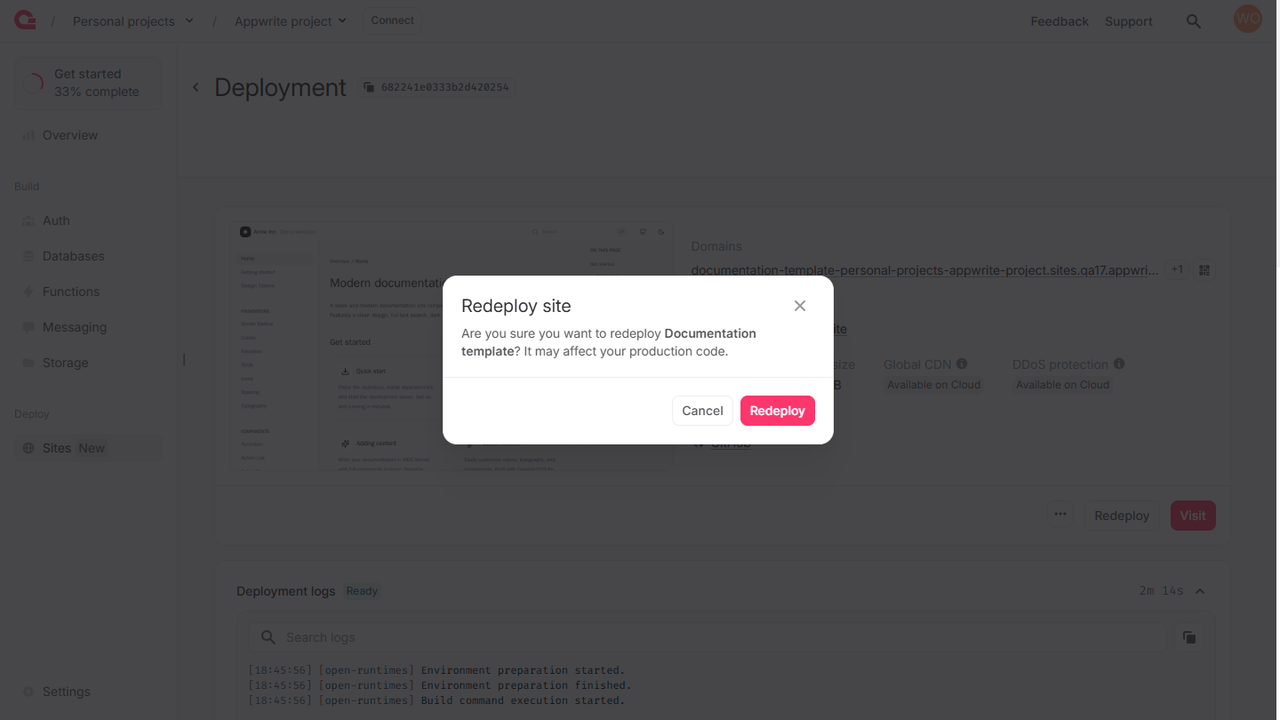
Redeployment behavior varies depending on how the initial deployment was created.
Benefits for Pro+ users
Users subscribed to the revenexx Pro plan or above receive certain special benefits:
- Express builds for quicker deployments, resulting in reduced wait times and smoother workflows
- Customizable build and runtime specifications for CPU and memory on each storefront