Deploy a Astro app to revenexx Storefronts
Learn how to setup and deploy Astro apps on revenexx Storefronts.
Create Astro app
First, you must either create an Astro app or setup the Astro starter template.
Open your terminal, and run the following command.
Bash
npm create astro@latest
Push this project to a GitHub repository.
Create revenexx project
Head to the revenexx Console.
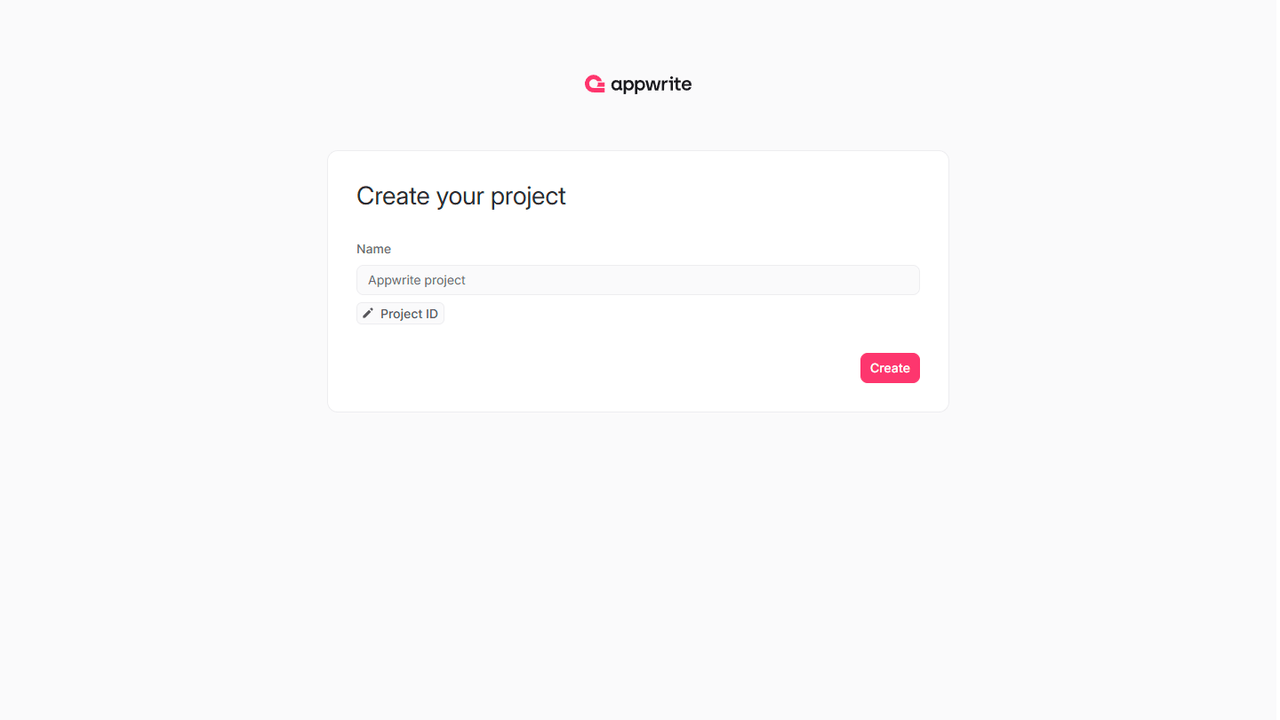
If this is your first time using revenexx, create an account and create your first project.
Create site
Head to the Sites page in your revenexx project, click on the Create site button, and select Connect a repository.
Connect your GitHub account and select the repository you intend to deploy (or allow all repositories, for future ease).
- Select the production branch and root directory from your repo.
- Verify that the correct framework is selected. In case an incorrect framework is visible, pick Astro from the drop-down list.
- Confirm the install command, build command, and output directory in the build settings. The default build settings for Astro are:
- Install command:
npm install - Build command:
npm run build - Output directory:
./dist
- Install command:
- Add any environment variables required by the storefront. This is not necessary if you're deploying the starter app.
Click on the Deploy button.
Visit site
After successful deployment, click on the Visit site button.